Prompt Debug Guide
What it is
Prompt Debug helps you see:
- what was actually sent to the model for the latest turn
- which references really made it into the prompt
- which pieces were skipped because of budget, trimming, or selection rules
- why the result may feel off, forgetful, or focused on the wrong thing
You can think of it as a snapshot of the latest assembled prompt.
It is not mainly for "analyzing the model's mind." It is much more useful for separating:
- content that never made it in
- content that did make it in, but was not used well
When to open it
Prompt Debug is especially useful when:
- the next reply feels like it forgot what just happened
- an old lore point or old thread keeps hijacking the current scene
- you expected a scene memory or long-term memory to be included, but it was not
- you suspect the prompt was too full and something got trimmed
- you want to compare the chat UI view with the real model input
If your problem is mostly style, rhythm, or prose quality, Prompt Debug may not answer it directly. It is best for checking how context and references were assembled.
How to open it
First, turn on Prompt Debug in Generation settings.
Once it is enabled, each generation in the writing chat keeps the latest prompt snapshot. After you send a message and the turn finishes, open the latest Prompt Debug from the Prompt button when it appears.
It is best to check it right after a generation because:
- the context is still fresh
- it is easier to connect the panel to the reply you just got
- it is easier to remember what you wanted the system to carry forward
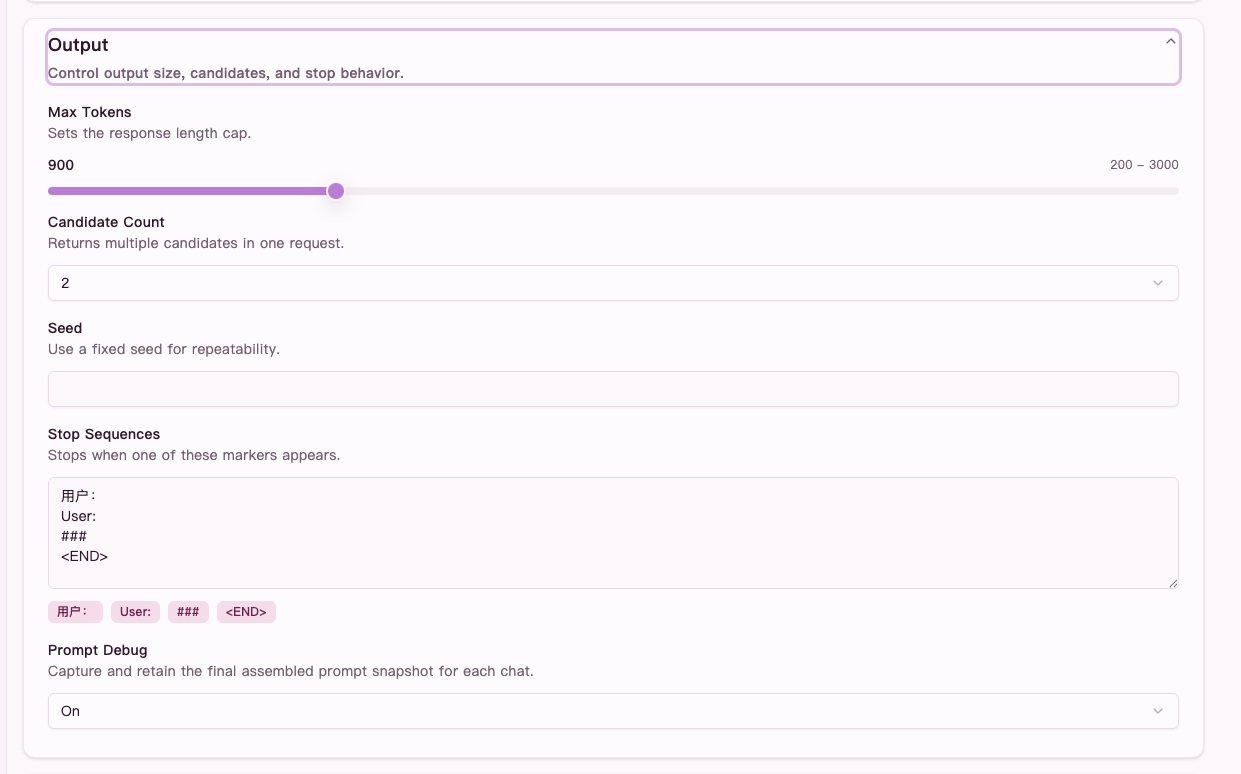 Figure: turn on
 Prompt Debug in Generation settings first, otherwise the chat will not keep the latest prompt snapshot.
In the screenshot above, Prompt Debug is turned on in Generation settings. Without that switch, the chat will not keep the latest prompt snapshot for you to inspect.
What to look at
The three most useful tabs are:
1. Budget and trimming
This tab answers:
- how full the prompt was
- whether fallback, compression, or trimming happened
- which source blocks were applied and which were skipped
Good things to watch:
Prompt Tokens/Prompt Budget: whether the turn was close to the limitHistory Reserve: how much space was reserved for historyDropped Blocks/Summarized Blocks: whether content was dropped or compressedPrompt Sources: where the content came fromBlock Decisions: which blocks stayed and which were skipped
A useful way to read it:
- if the budget is tight, "missing context" may simply be a space problem
- if a source type keeps not applying, the issue is more likely strategy or conditions than the model improvising
- if fallback or compression happened, the result may preserve structure but lose detail
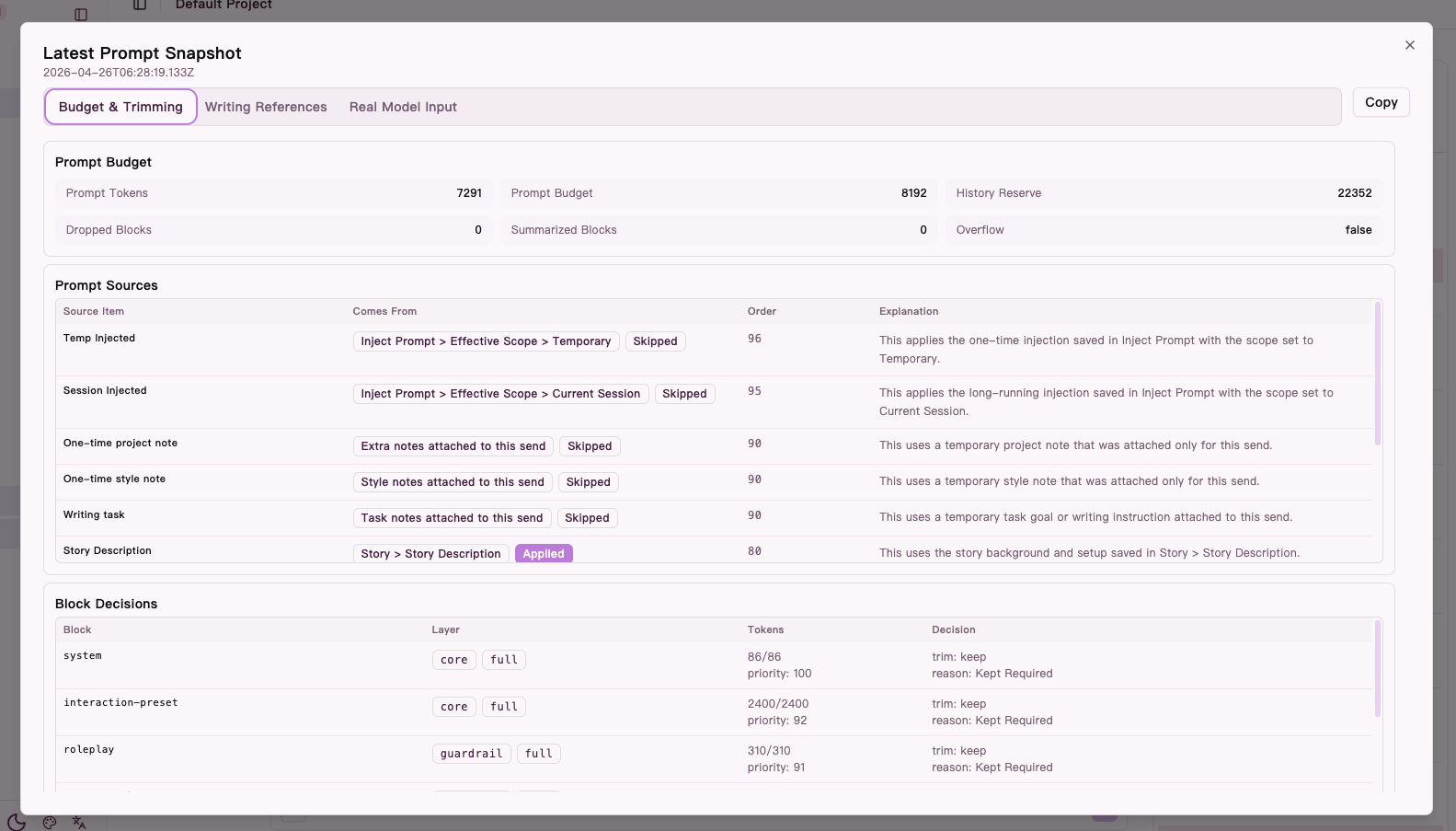 Figure: the
 Budget and trimming tab shows prompt budget, prompt sources, and block-level trimming decisions.
2. Writing references
This tab answers:
- which scene references and long-term memory references were considered
- which candidates were actually used
- why some references were not included
This is usually the best tab for "why did this turn go wrong?"
Look at:
- scene references: current-scene carryover
- long-term memory references: older facts, clues, relationships, lore
- blocked reasons: why a category did not participate this turn
- result reasons: whether nothing was used, some were used, or some were trimmed
- top candidates: what almost made it in
Common readings:
- many candidates but few used: likely a budget or selection pressure issue
- wrong candidates: more likely a recall-direction problem
- no candidates at all: more likely missing context, insufficient trigger conditions, or turn timing
This area may also include:
- recent human recall feedback summaries
- clue or thread changes for the turn
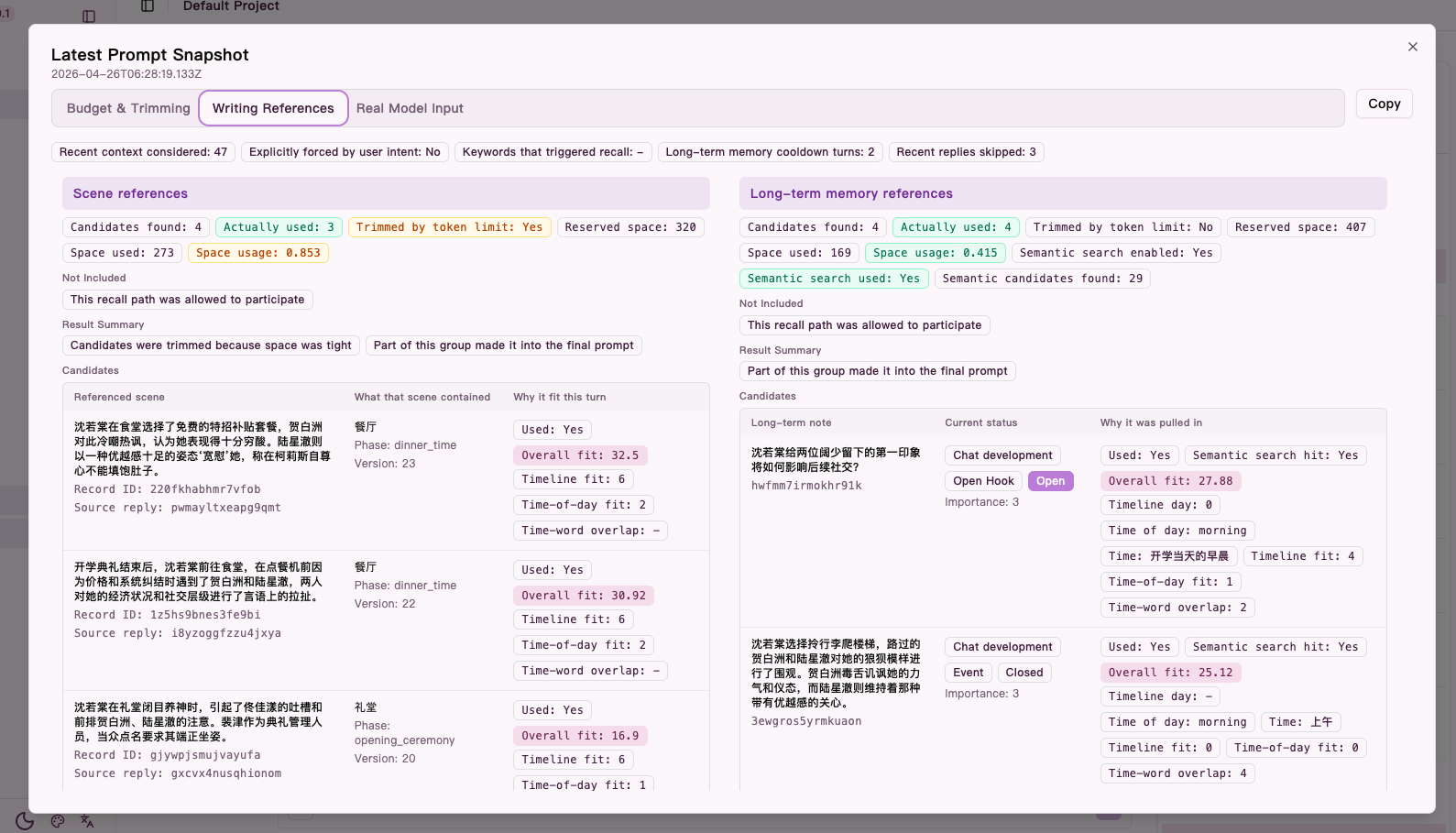 Figure: the
 Writing references tab shows scene references, long-term memory references, and why candidates were included or trimmed.
3. Actual model messages
This tab answers one very direct question:
- what exactly was sent to the model
Use it when:
- you suspect something only appeared in the UI but not in the real input
- you want to confirm whether a note, lore detail, or reference text actually participated
- you think the system misunderstood, and you want to verify the input first
If something you expected is missing here, go back to Budget and trimming or Writing references first.
Further down in the Writing references tab, you can also see recent human recall feedback summaries. They are useful when you want to tell the difference between "the right thing never got in" and "the wrong thing kept getting in."
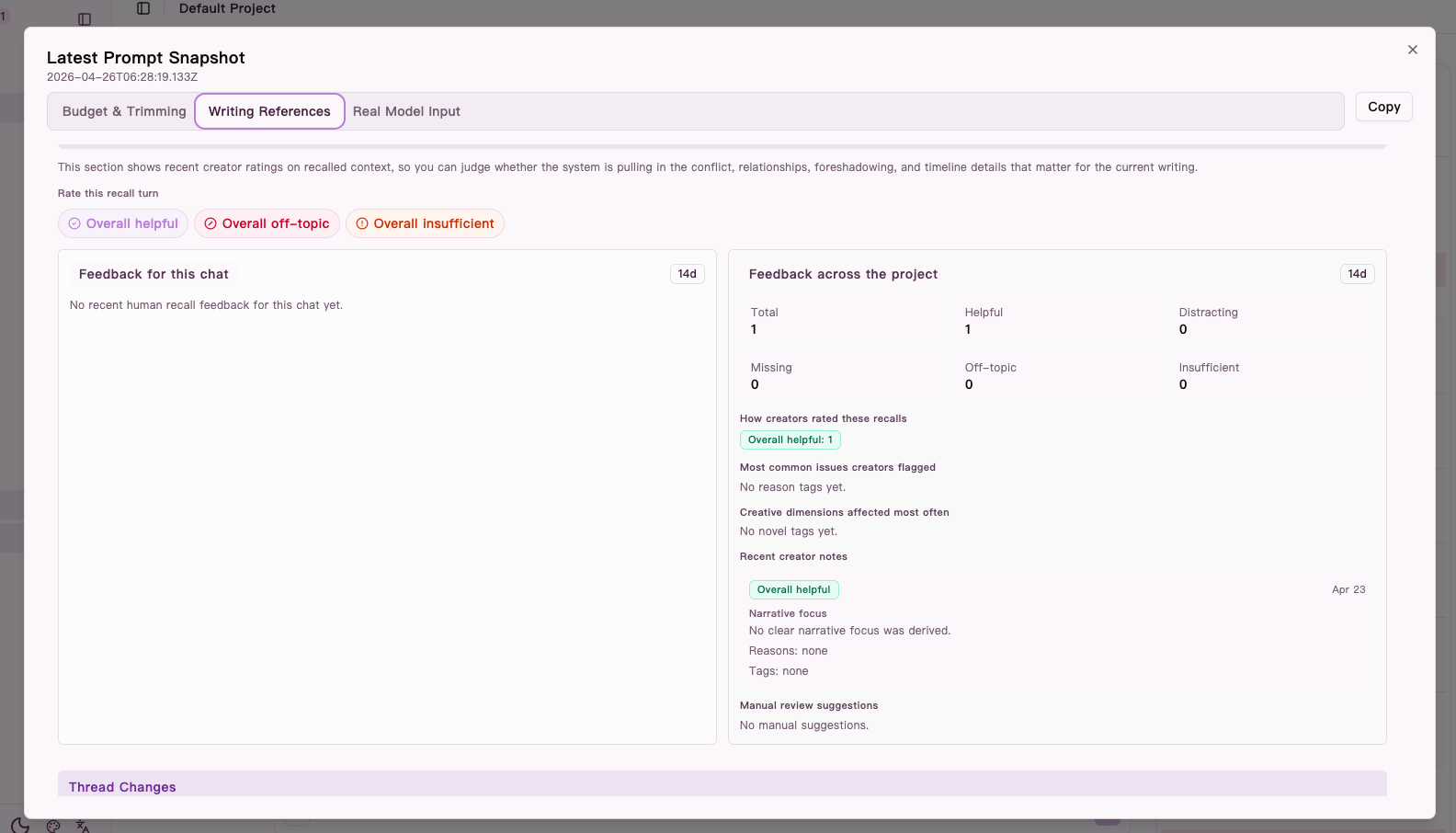 Figure: lower in the
 Writing references tab, recent human recall feedback helps you tell missing context apart from distracting context.
Common debugging cases
1. It feels forgetful and fails to continue the recent scene
Check:
- scene references in Writing references
- history compression and trimming in Budget and trimming
If the recent scene context did not make it in, the problem is more likely missing carryover. If it did make it in and the reply still missed it, the problem is more likely model interpretation or execution.
2. Old material keeps stealing focus
Check:
- long-term memory references
- recent human recall feedback
If the same older items keep getting pulled in and users often mark them as distracting, recall may be too wide or the turn focus may not be tight enough.
3. An important fact or setting should have appeared, but did not
Check:
- Prompt Sources
- blocked reasons and candidate lists
If it never became a candidate, the issue is more like "it was not surfaced." If it became a candidate and was trimmed, the issue is more like budget pressure.
4. You want to understand why the model answered this way
Check:
- Actual model messages
- Writing references
This helps answer:
- which context pushed the reply in that direction
- whether a specific reference dominated the turn
- whether a key piece of information never entered the prompt
What not to over-interpret
1. It shows what was sent, not what the model must do with it
A piece of context entering the prompt does not guarantee the model will use it well. A missed emphasis does not automatically mean recall failed.
Prompt Debug is best for input-side diagnosis, not for making the final creative judgment.
2. It shows the latest turn
If you are tracking a pattern, compare multiple turns instead of making a strong judgment from one snapshot.
Single turns can be noisy because:
- the budget may be unusually tight
- the scene may be shifting
- a temporary instruction may have changed priorities
3. Scores are hints, not absolute truth
A high-ranked candidate is not automatically the most creatively useful one. A low-ranked candidate is not automatically unimportant.
Treat the panel as a debugging aid, not a replacement for creative judgment.
One-line takeaway
When you want to know why a turn came out this way, Prompt Debug is the fastest place to separate "it never got in" from "it got in, but was not used well."